
AI Summary and Change Detection - Bring your own key!
Topic
Ever had a change alert and thought "ok... but what actually changed?". Or got pinged for the hundredth time because a cookie banner moved, a "3 hours ago" turned into "4 hours ago", or a footer got shuffled around?
changedetection.io now has two AI-powered features that fix exactly that:
- AI Change Summary - instead of a wall of red and green, you get a short plain-English description of what changed. "Price dropped from $349 to $279. The 'Only 3 left' banner was removed."
- AI Intent - you describe what you care about in normal words, "Tell me when the price drops below $300", and the AI checks every change against that. No match, no notification.
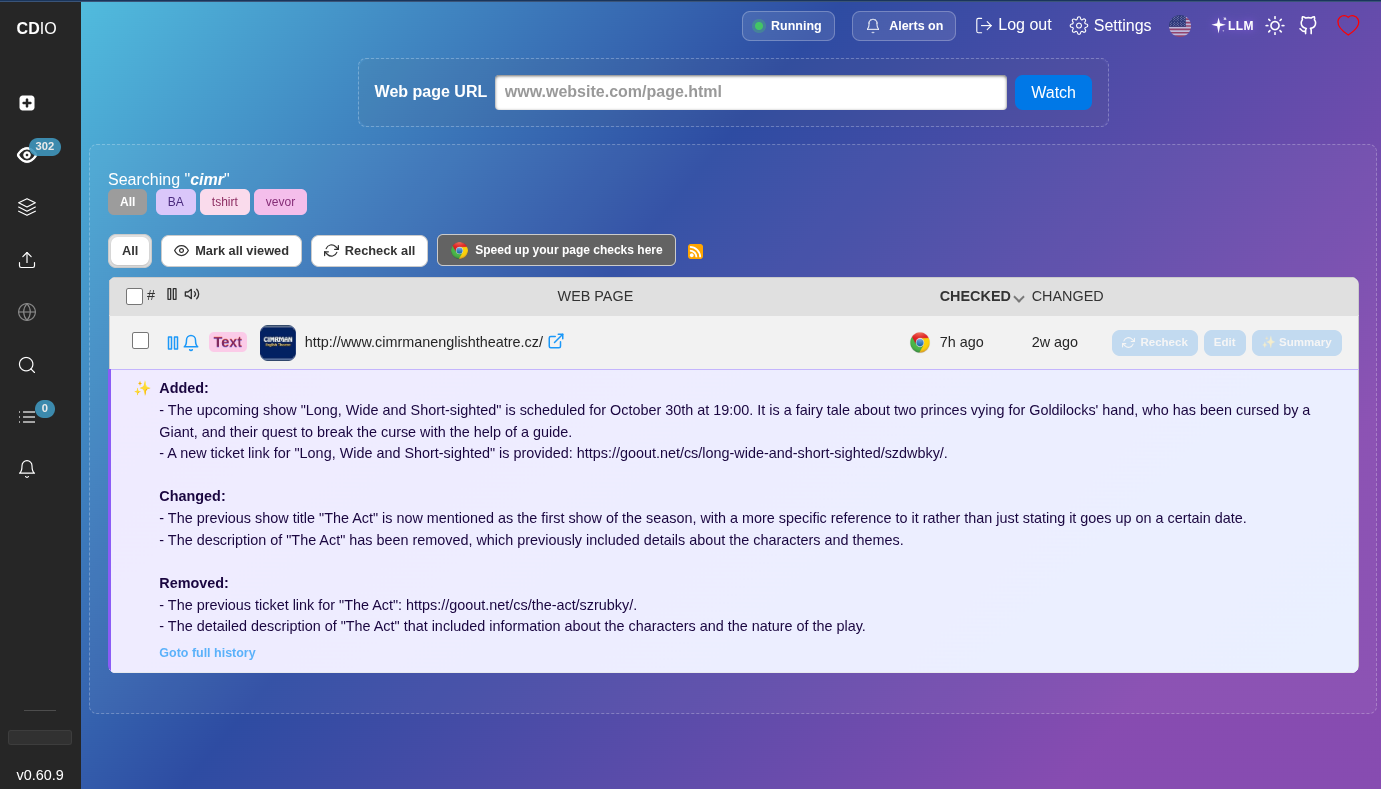
And here's the best part, it's bring your own key. You plug in your own OpenAI (or Anthropic, Gemini, Groq, Mistral, DeepSeek, OpenRouter...) API key, and you pay your provider directly for what you use. We don't add any markup on AI usage, and there's no "AI tier" to upgrade to - it's included.
First, grab a quick cheap subscription or install the changedetection.io software locally - with a subscription you'll be up and running in just a few seconds.
So let's go! We'll use OpenAI as the example, and watch a product page with the intent "Tell me when the price drops below $300".
Step 1. Get your OpenAI API key
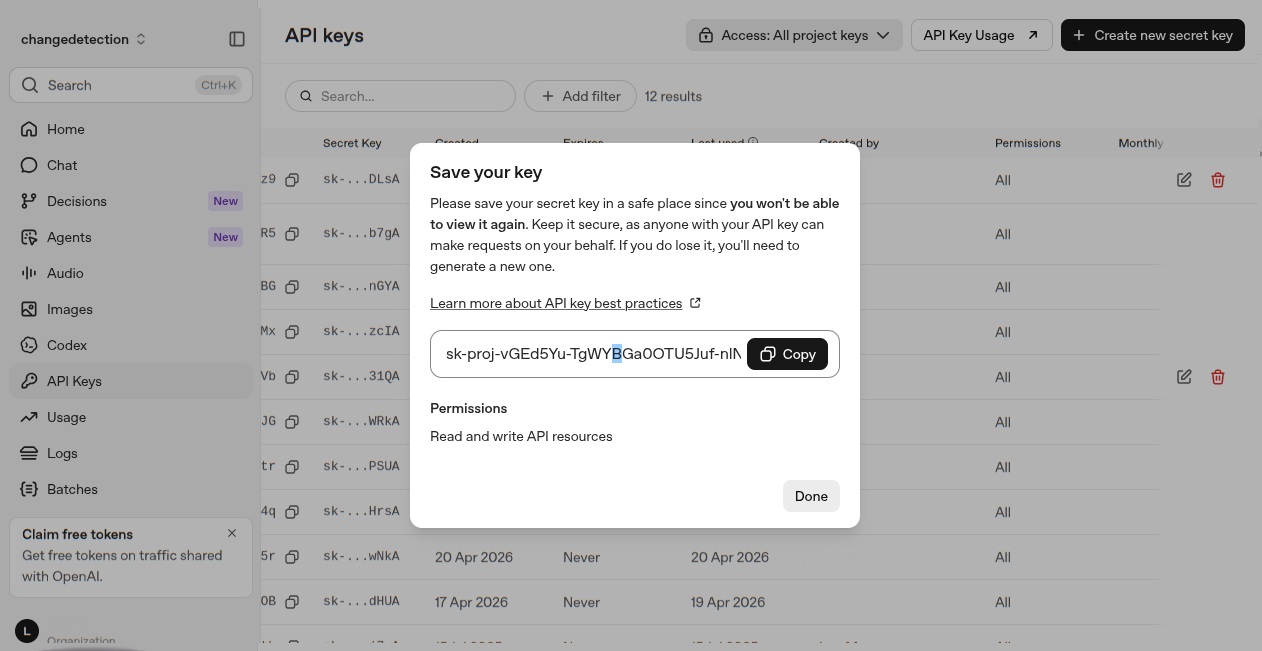
Head over to platform.openai.com ( https://platform.openai.com/api-keys ) , log in, and go to API keys, then Create new secret key. Copy it somewhere safe, OpenAI only shows it once.
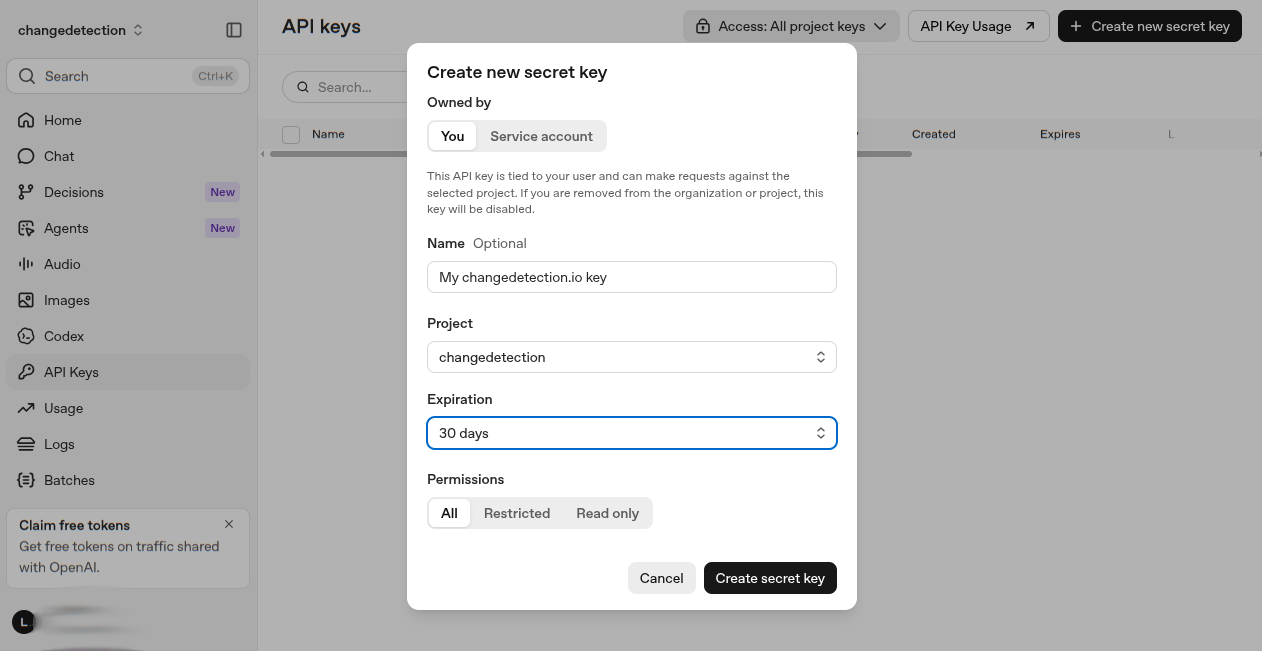
We suggest creating a separate OpenAI "Project" just for changedetection.io and setting a monthly spend limit on it. That way you always know exactly what your website monitoring AI costs, and the key can never spend more than you decided.
And then you will have your key - Copy and paste this, save it to somewhere safe, it usually starts with sk-...
Step 2. Connect OpenAI to changedetection.io
In changedetection.io go to Settings, then the AI / LLM tab.
- Choose OpenAI as the AI Provider
- Paste in your API key
- Press Load available models - this asks OpenAI which models your account can actually use, so you'll only see ones that work
- Pick a model (see the next section, this is the important bit!)
- Press Test connection, then Save
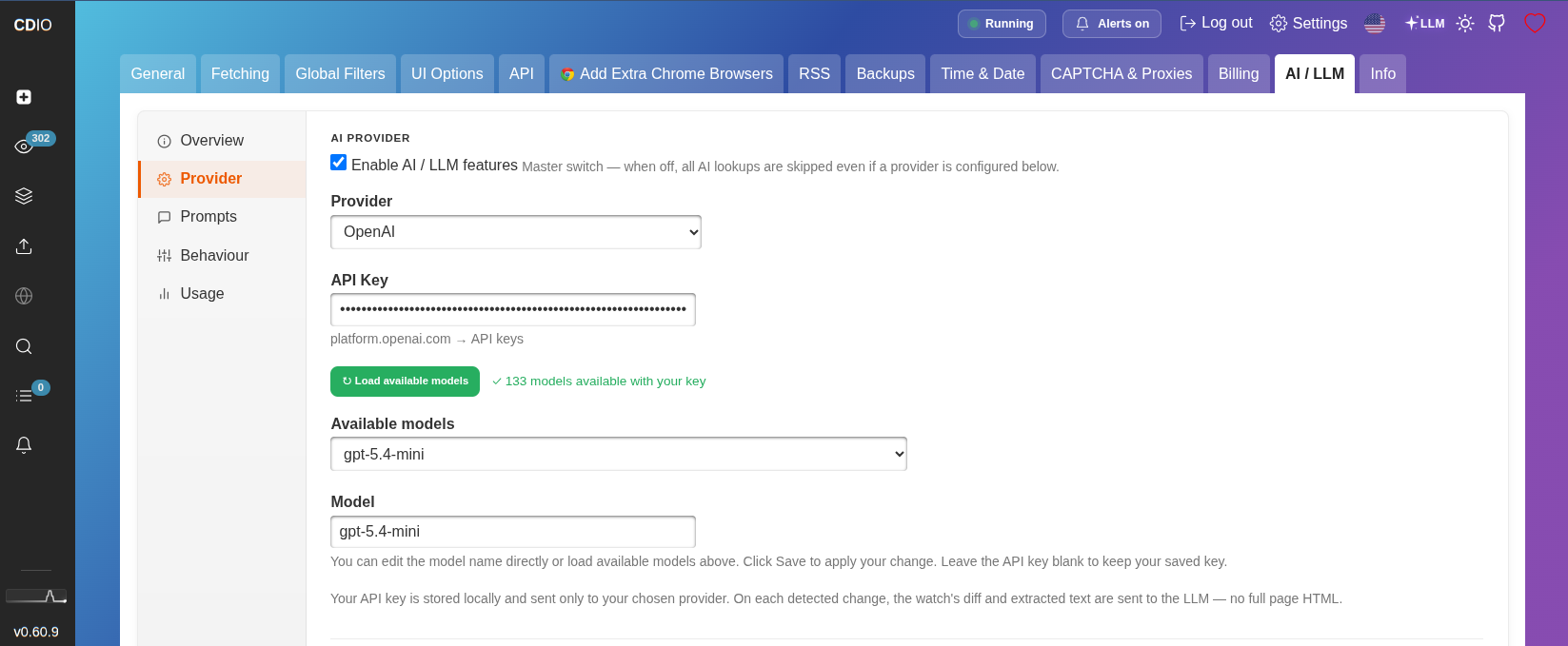
That's it, AI is now switched on :)
Which model should I pick? (read this one!)
This is the part people get wrong, so let's explain a little.
The two AI features are actually doing two very different jobs:
AI Change Summary vs AI Intent
The question
"Describe what changed" vs "Does this change match my rule - yes or no?"
Writing a nice summary is easy for almost any model. But comparing numbers is surprisingly hard for small models - they're great with words and not so great with maths. "Below $300" means the AI has to read prices in all kinds of formats ($1,299.00, 1.299,00 €, USD 299), compare them exactly, and get the direction right. Smarter "reasoning" models think it through before answering, and that's exactly what intent rules need.
One model is used for both features, so:
- Only using AI Change Summaries? A small, fast, cheap model is perfect.
- Using AI Intent, especially anything with a number, a price, a threshold, or "more/less than"? Pick a reasoning model. (for example
gpt-5.4-mini) It will write your summaries just as well too.
And here's the nice surprise - a smarter model for intents costs less than you'd think. The AI's answer to an intent check is just one short line ("yes, the price dropped from $349 to $279"), and you pay mostly for what the AI writes. Plus every change is only ever checked once, the result is remembered.
Step 3. Set a token budget (optional, but we suggest it)
Still in Settings → AI / LLM, set a monthly Token budget. If it's ever reached, AI is simply paused until next month - your monitors keep checking and notifying you as normal, just without the AI part.
You can also set a cap per monitor, handy if you have one very busy page.
The settings page also shows how many tokens you've used this month and an estimated cost, so there are no surprises.
You should always periodically check this information against your spendings on the LLM provider.
Step 4. Tell it what you care about (AI Intent)
Add the product page you want to watch (or open one you already have), click [EDIT], and find the AI / LLM tab.
In the intent box, write what you care about, just like you'd tell a friend:
Tell me when the price drops below $300, or when it comes back in stock. Ignore changes to reviews and the footer.
Now the clever bit - the AI Intent preview checks your intent against the page right now, so you can see the AI understood you before you save. Ask it something like "what is the current price?" and make sure it answers $349.00, not something random. If it reads the price right, you're good to go.
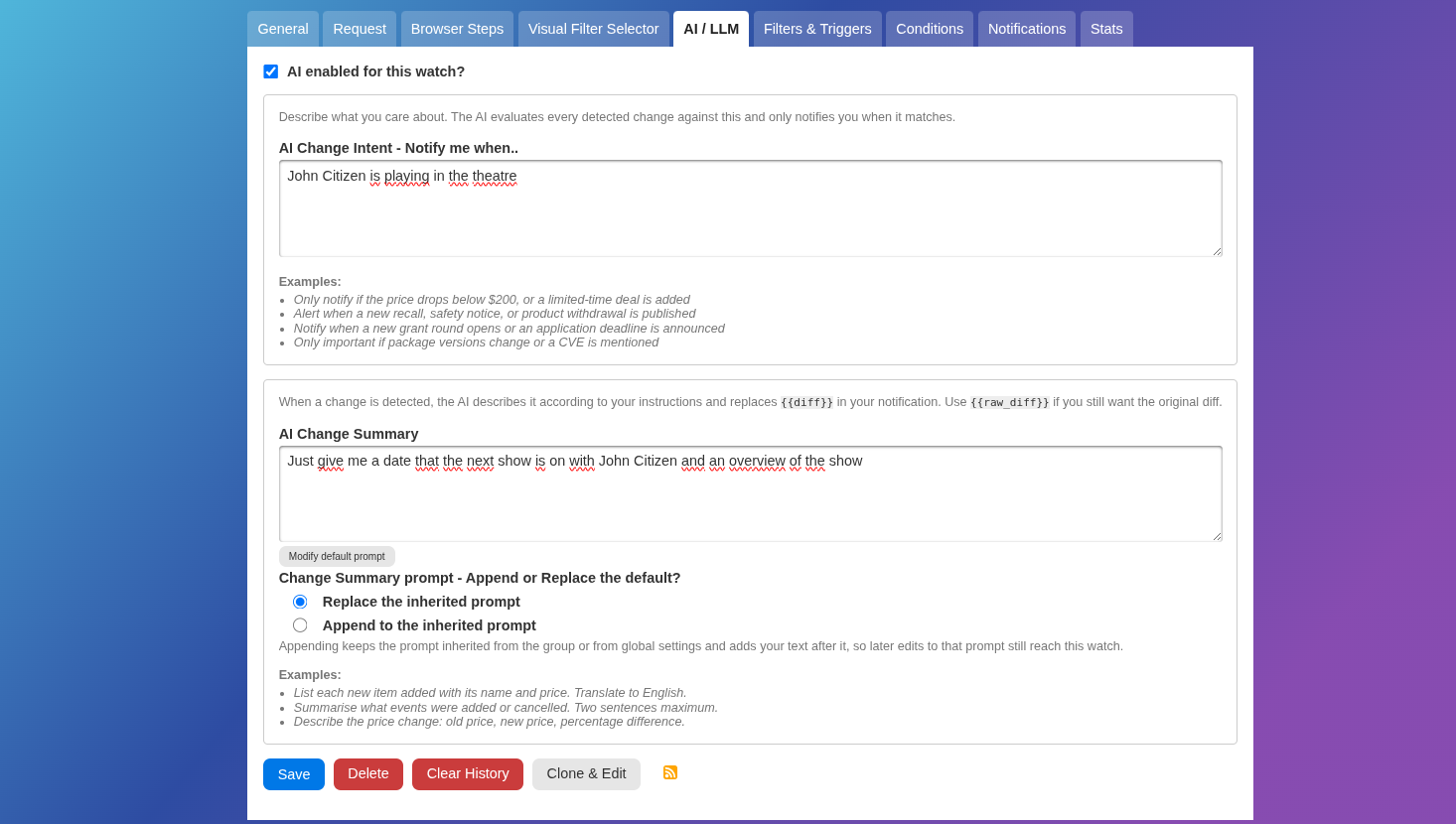
Or for example, if you love theatre, you might ask it to just notify you when your favourite actor Johnny Citizen is playing!
Bonus - set it once for a whole group
Watching 40 competitor product pages? You don't need to type the intent 40 times. Put them all in a tag / group, and set the intent on the group instead - every monitor in that group uses it, unless you give a monitor its own.
"Flag price changes or new product launches across all watches in this group" - done, for all of them.
Step 5. Get the summary in your notifications
Here's something really cool - you probably don't need to change anything. Once AI Change Summary is switched on, the normal {{diff}} in your notifications automatically becomes the AI summary instead of the raw diff.
Want both? Use {{llm_summary}} for the AI version and {{raw_diff}} for the classic +/- diff, and {{llm_intent}} to show which intent was matched.
Not set up notifications yet? Follow our Discord alerts tutorial, it takes about two minutes, and the same works for Slack, email, Telegram, MS Teams and 90+ others.
A few honest words
AI is brilliant at this, but it isn't perfect - it can occasionally misread something or leave a detail out of a summary. That's why the full change history and the classic diff view are always there, one click away. The AI helps you decide what's worth looking at, the history is the proof.
Wrapping up
So that's it, in about five minutes you've got:
- 🧠 Plain-English summaries of every change (Or even translate from other languages on the fly! monitor and build summaries from web pages in other languages!)
- 🎯 Alerts only when a change matches what you care about
- 🔑 Your own key, paying your provider directly with no markup
- 💰 A budget so the AI never costs more than you decided
Running changedetection.io yourself? All of this works the same in the self-hosted version, you can even use a local model with Ollama.
Have fun!
-
Continue with

 $8.99/Month Easy Subscription
Cancel anytime, 5,000 URL watches included.